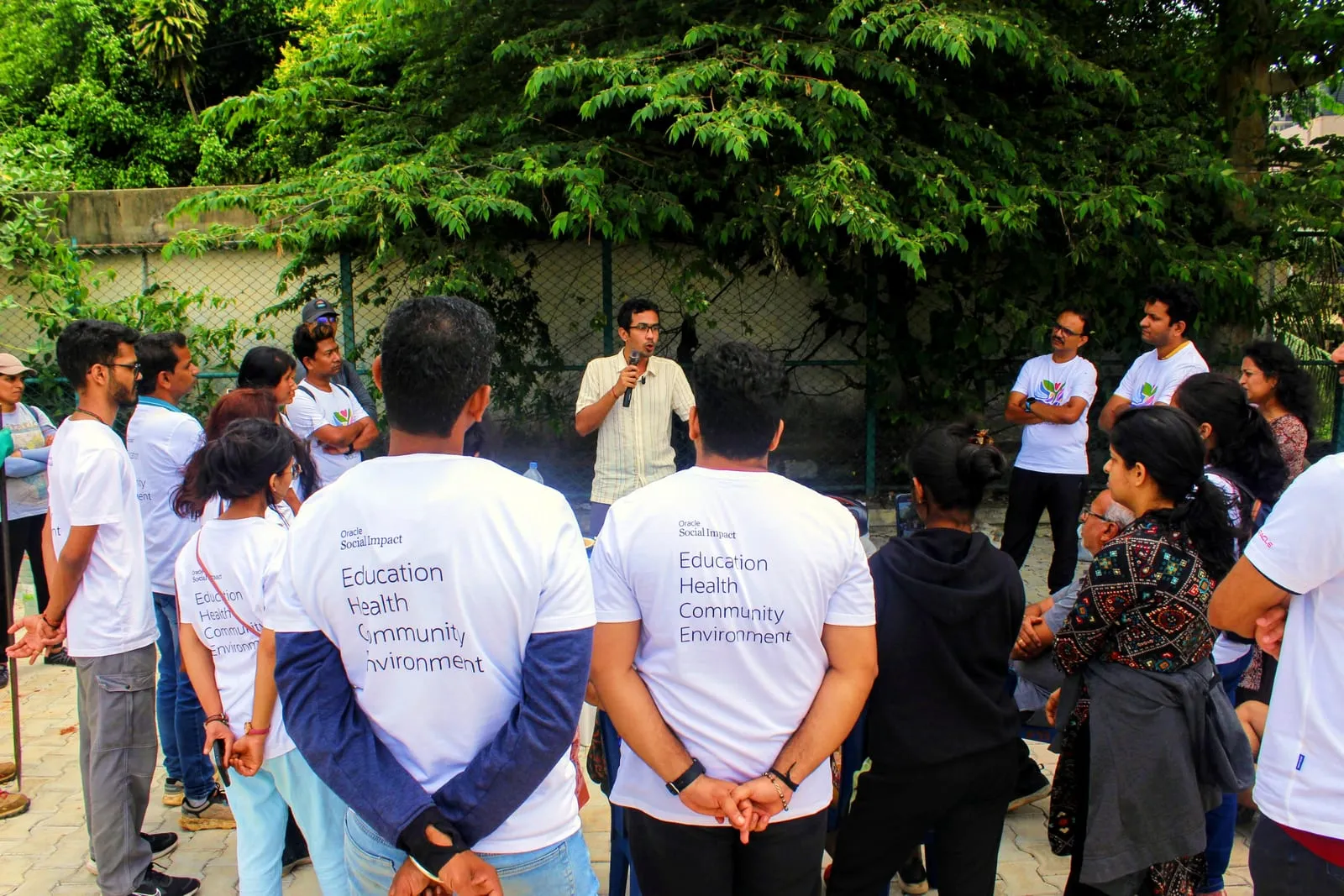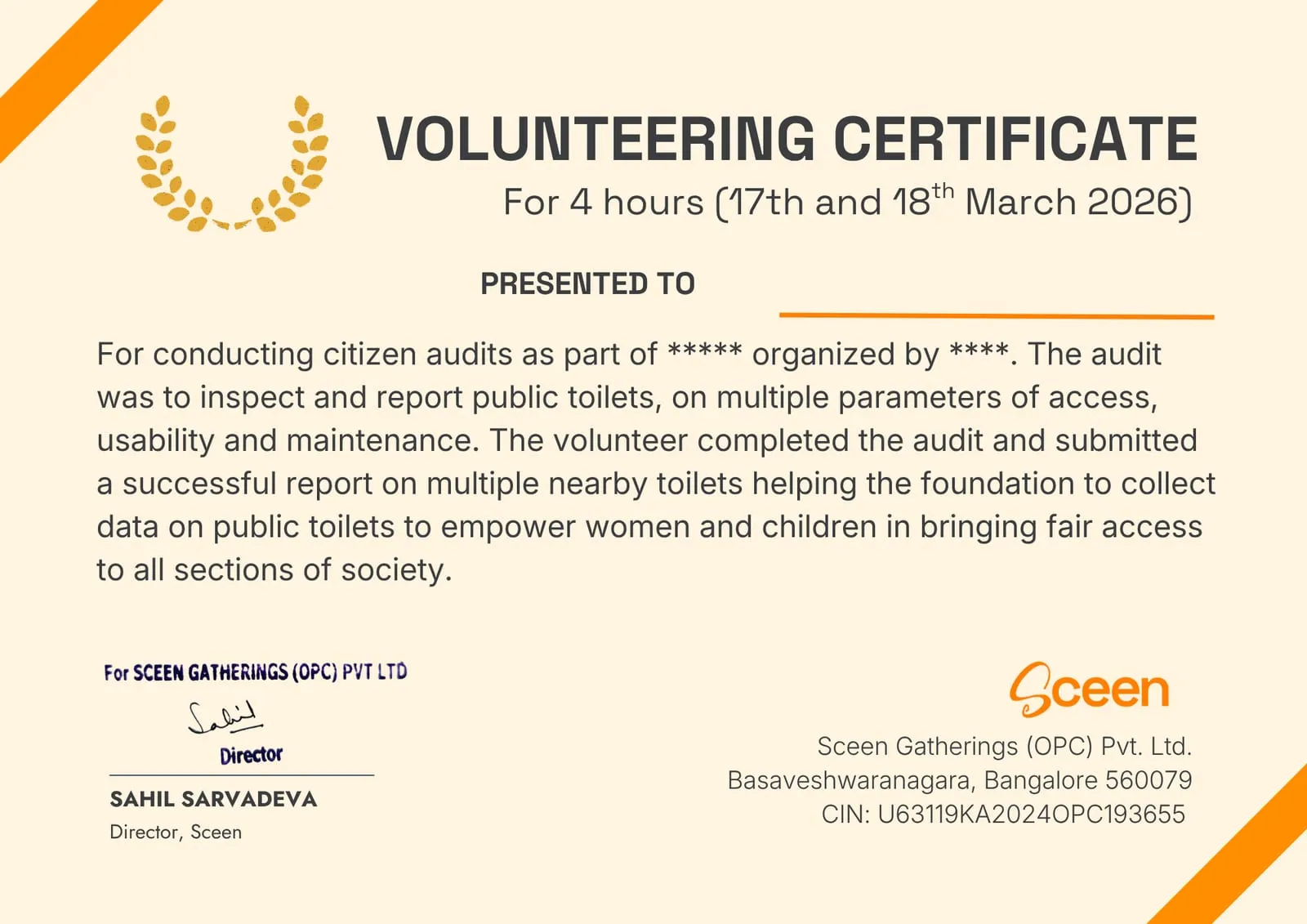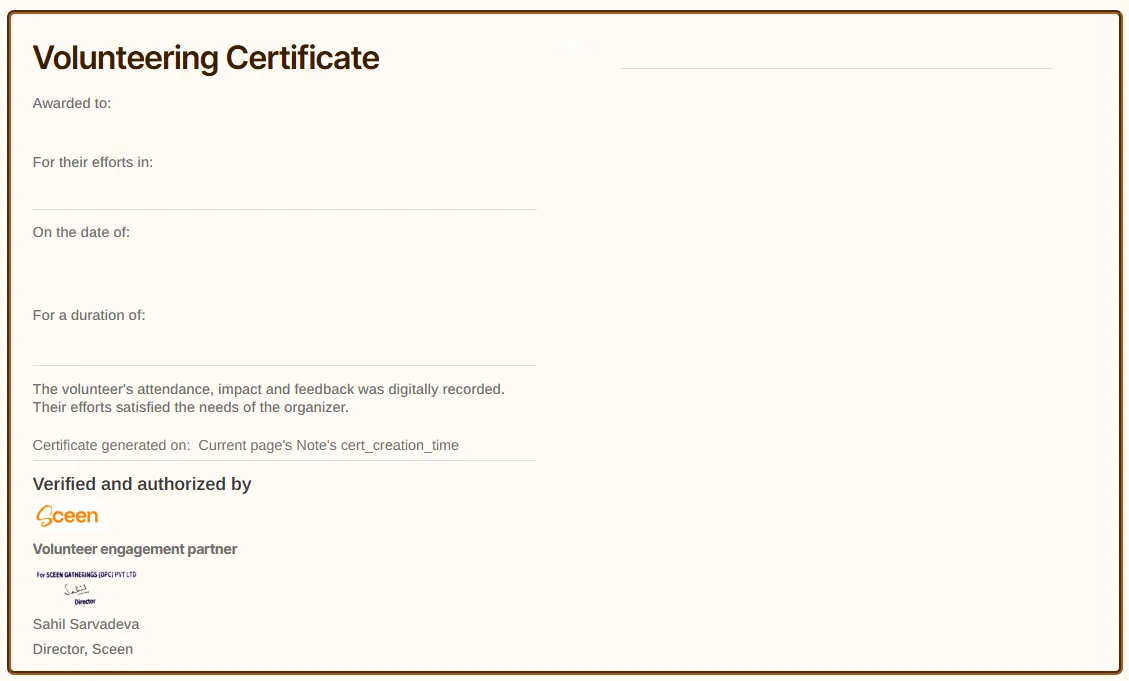
Volunteering builds your community and your resume, and documenting that impact matters. Whether you need proof for college credits such as AICTE activity points or for a professional portfolio, a volunteer certificate is a record of your work.
Sceen makes this process simple. This guide walks you through joining an activity, logging your hours and requesting your e-certificate in a few clicks. If you’re new to the platform, read how Sceen works first.
Step 1: Join the volunteering activity
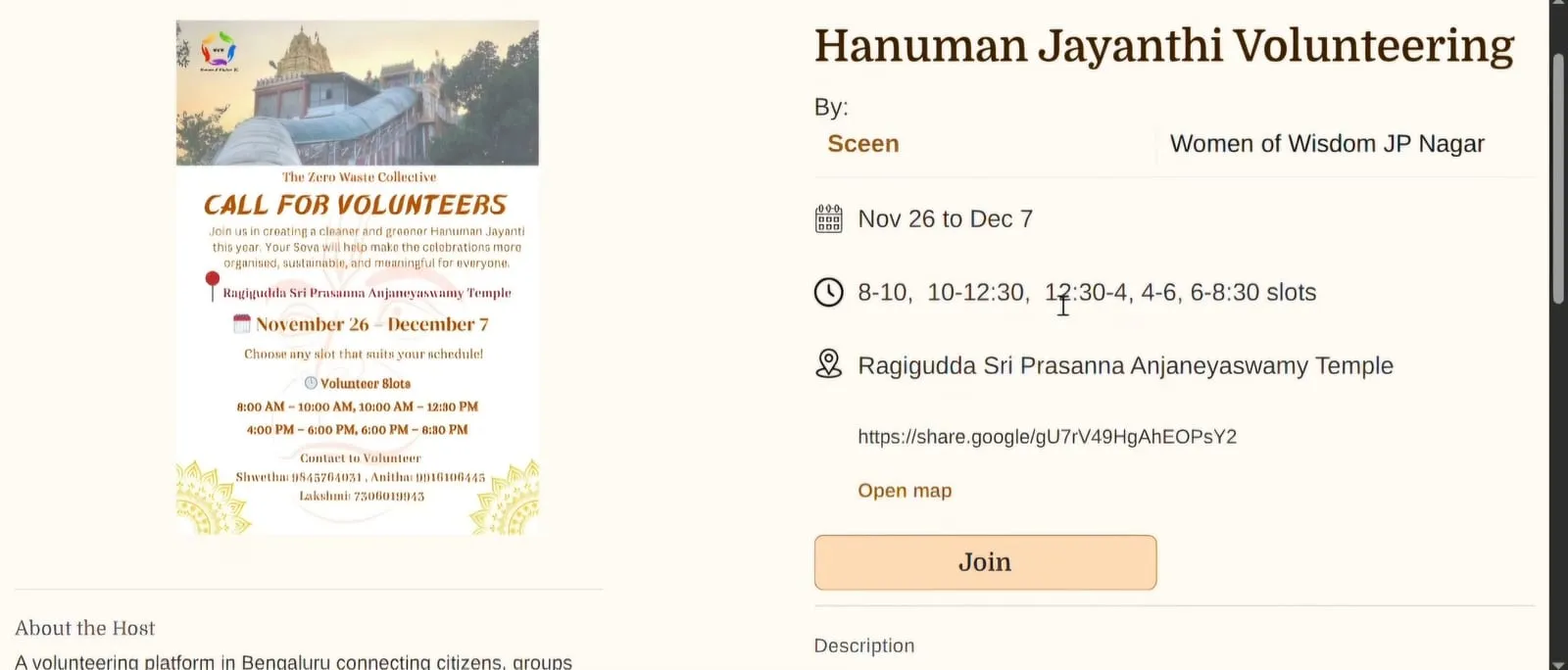
- Open the activity page on Sceen (for example, “Hanuman Jayanthi Volunteering”).
- Click the Join button.
- Enter your phone number, name and email address.
- Click Confirm.
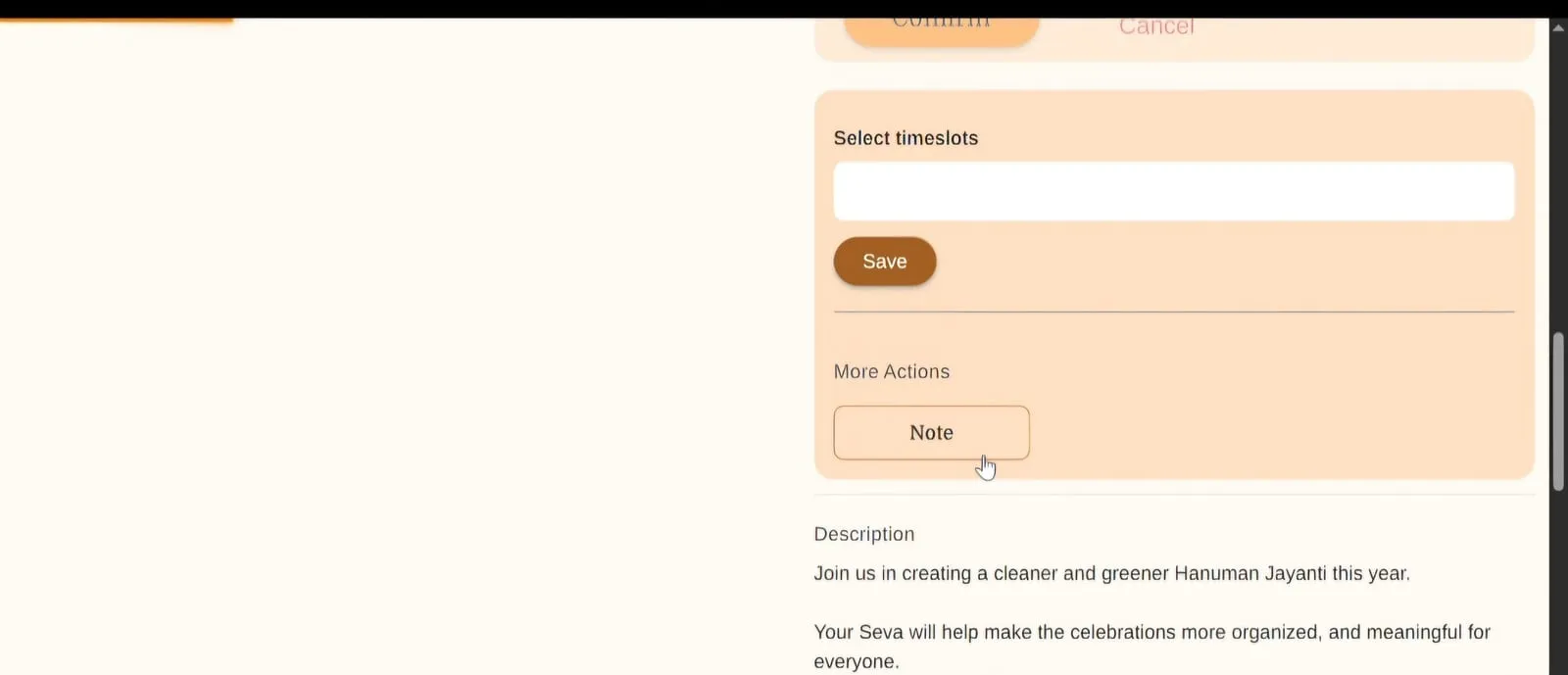
Step 2: Open the Note feature
Once you’ve joined, the page updates. You don’t request the certificate straight away: first, you log your activity.
- Look for the Note button on the activity page.
- Click Note.
Step 3: Log your hours and experience
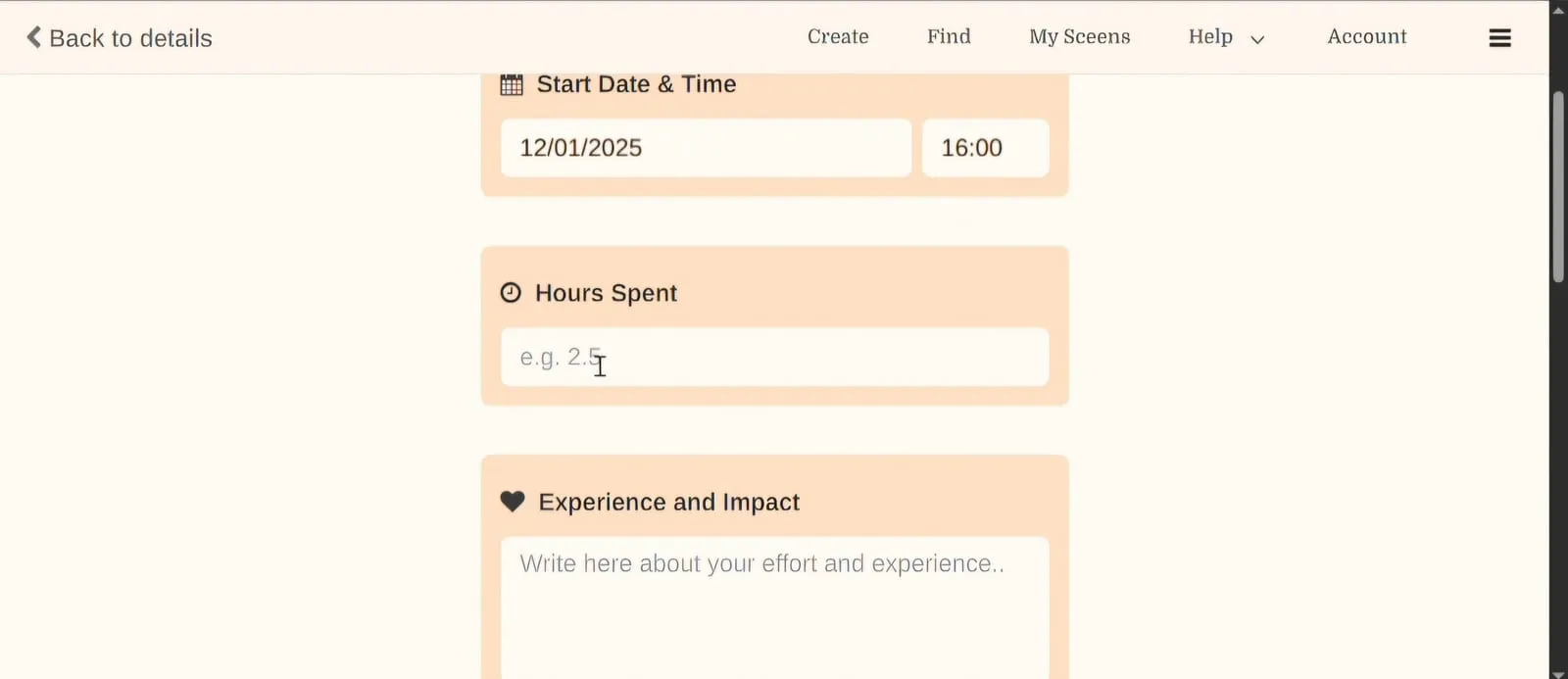
To issue a certificate, the organizer needs details about your shift. On the “New note” screen, fill in the following:
- Start Date & Time: the day and time you began your work.
- Hours Spent: the total duration (if you worked two and a half hours, enter “2.5”).
- Experience and Impact: a short description of what you did and how it helped.
Step 4: Upload proof of work
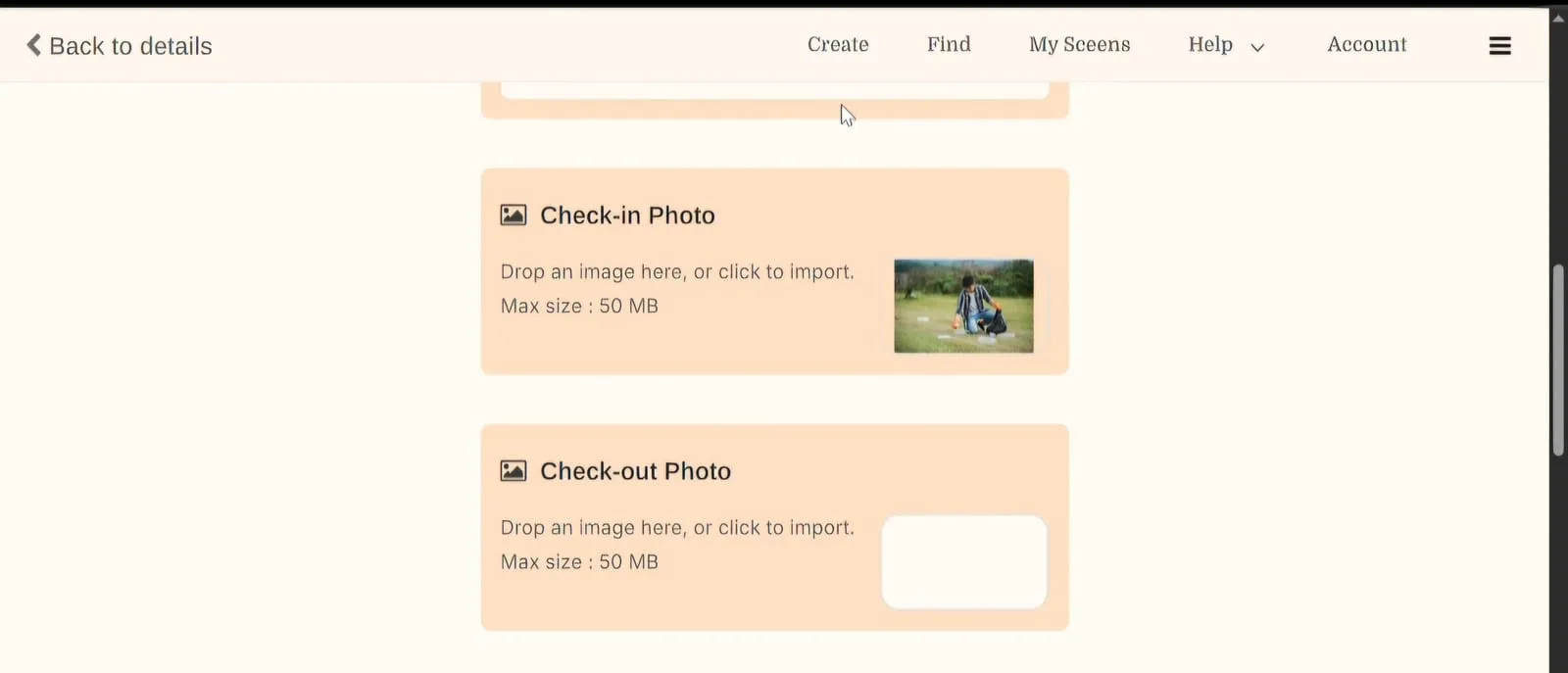
Transparency matters on Sceen, so you’re asked to upload photos of your attendance:
- Check-in Photo: a photo taken when you arrived.
- Check-out Photo: a photo taken when you finished your shift.
Step 5: Request the certificate
This is the most important step. Scroll down to the bottom of the Note page.
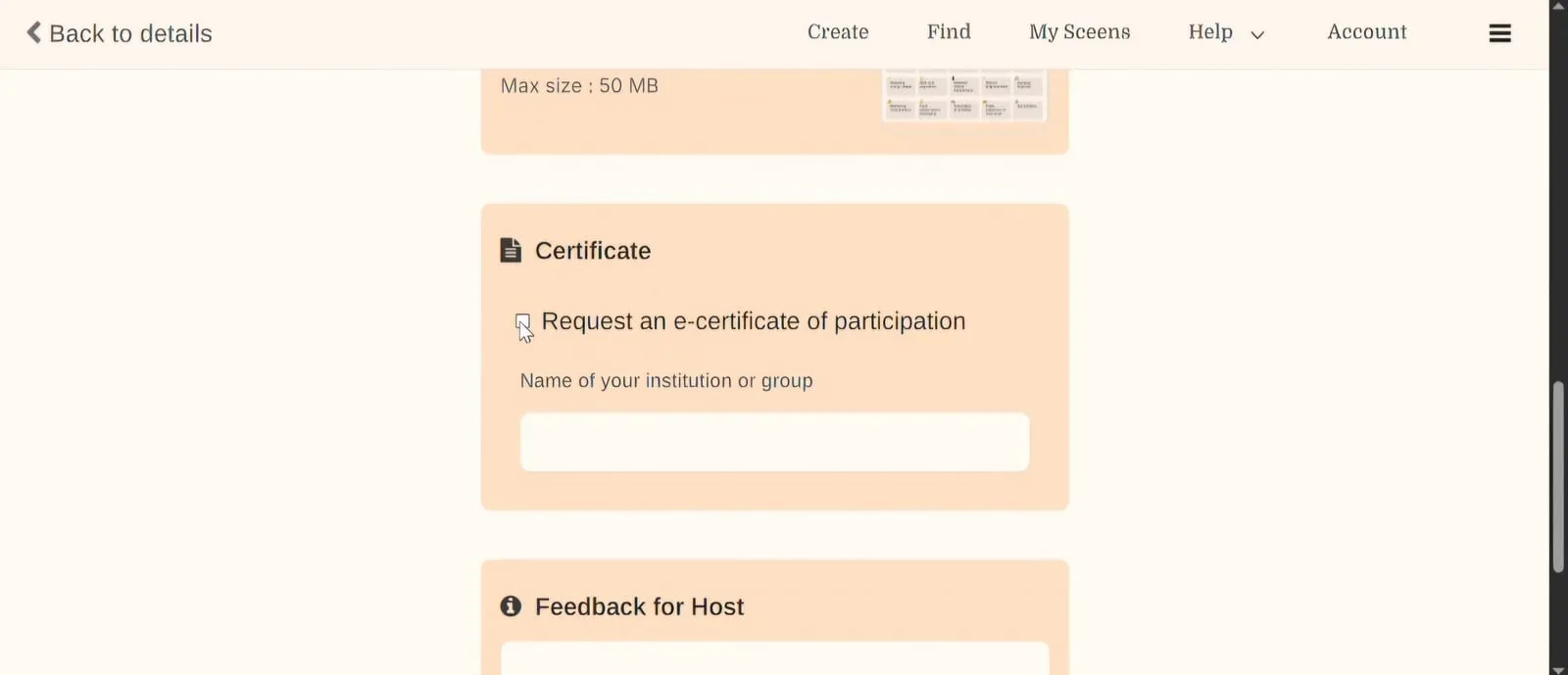
- Tick the box labelled “Request an e-certificate of participation”.
- Enter your institution: type the name of your college, school or group, so the certificate is credited to the right organization.
- Feedback: tell the host what could be improved.
Step 6: Submit and confirm
Once all fields are filled, click Submit. You can’t change the note after submitting, so double-check your details.
After you submit, you’ll be taken to the “My notes” tab, where you can see a summary of your logged hours. Finally, check your email inbox for a confirmation email from Sceen.
Following these steps means your contribution is recorded and your volunteer certificate is processed without delay.
For the full video guide, watch it on YouTube.